The product's own user guide. Every screen shows Aldervane Health, a fictional organization. All data is synthetic.
10. Asking questions
The question it answers
What does all of this mean for a question I actually have?
The pages so far answer the questions Ciphren anticipates. You'll have others. For example: "Which of our hosts are affected by actively exploited vulnerabilities?", or "If our remote-access gateway were compromised, what could an attacker reach?" Ciphren offers four ways to ask, from quick to thorough.
| Tool | Use it for | Takes |
|---|---|---|
| Search | Finding things: a name, a CVE, a host, a phrase | Instant |
| Ask | A direct answer to a question, from the data | Under a minute |
| Deep Reasoning | An investigation that needs several steps of looking and thinking | A few minutes |
| Threat Modeler | "What if?": a scenario, played out against your estate | A few minutes |
On a hosted demonstration the AI tools are switched off, and the saved examples shown in this chapter are available instead. Search works as normal.
What the AI features can and can't do. Ask, Deep Reasoning, the Threat Modeler and the weekly briefings (chapter 11) are written by an AI model. They work only from the data Ciphren holds about you, and they cite it: hosts, findings and stories you can open and check. They can still be wrong, as any analyst can. Treat their answers as a well-prepared briefing to verify, not as a verdict. Each use is recorded in the audit log (chapter 12).
Where the model runs. The model is Anthropic's Claude, used through Amazon Bedrock, AWS's managed AI service, in the AWS region your deployment is set up for. When you use an AI feature, your question and the records it needs are sent to Bedrock to write the answer. Search also sends your query there, to rank results by meaning as well as by words. Under Bedrock's terms, AWS doesn't use them to train models or pass them to the model's maker. Nothing else in Ciphren is sent outside your deployment.
Search
Where: navigation ▸ Semantic Search, or the search box at the top of every page.
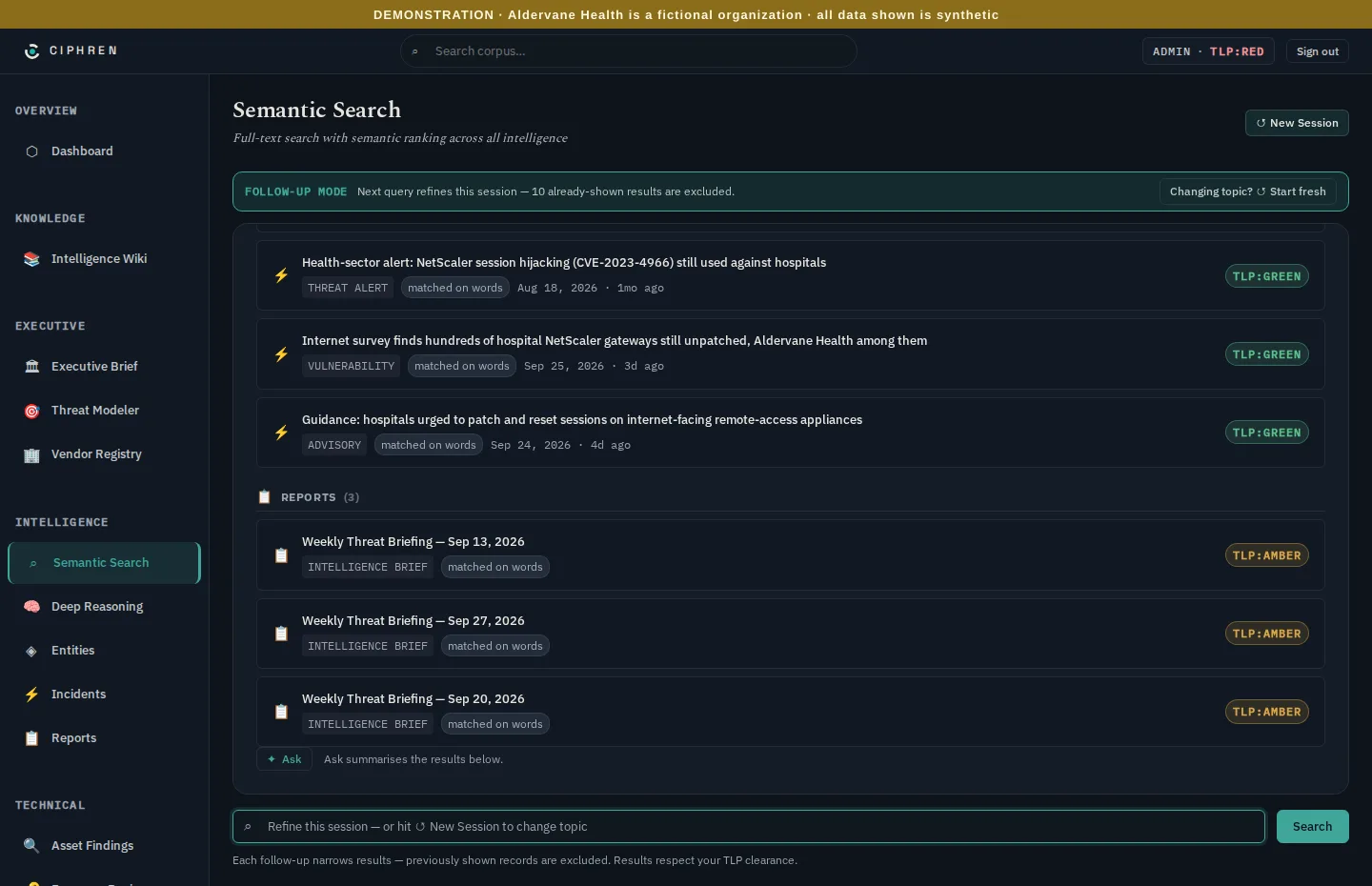
Type a name, a CVE, a host or any phrase. Results come from every kind of record: incidents, entities, findings and reports, ranked by relevance. Each follow-up search narrows the last. You only see results your access level allows (chapter 12).
Ask
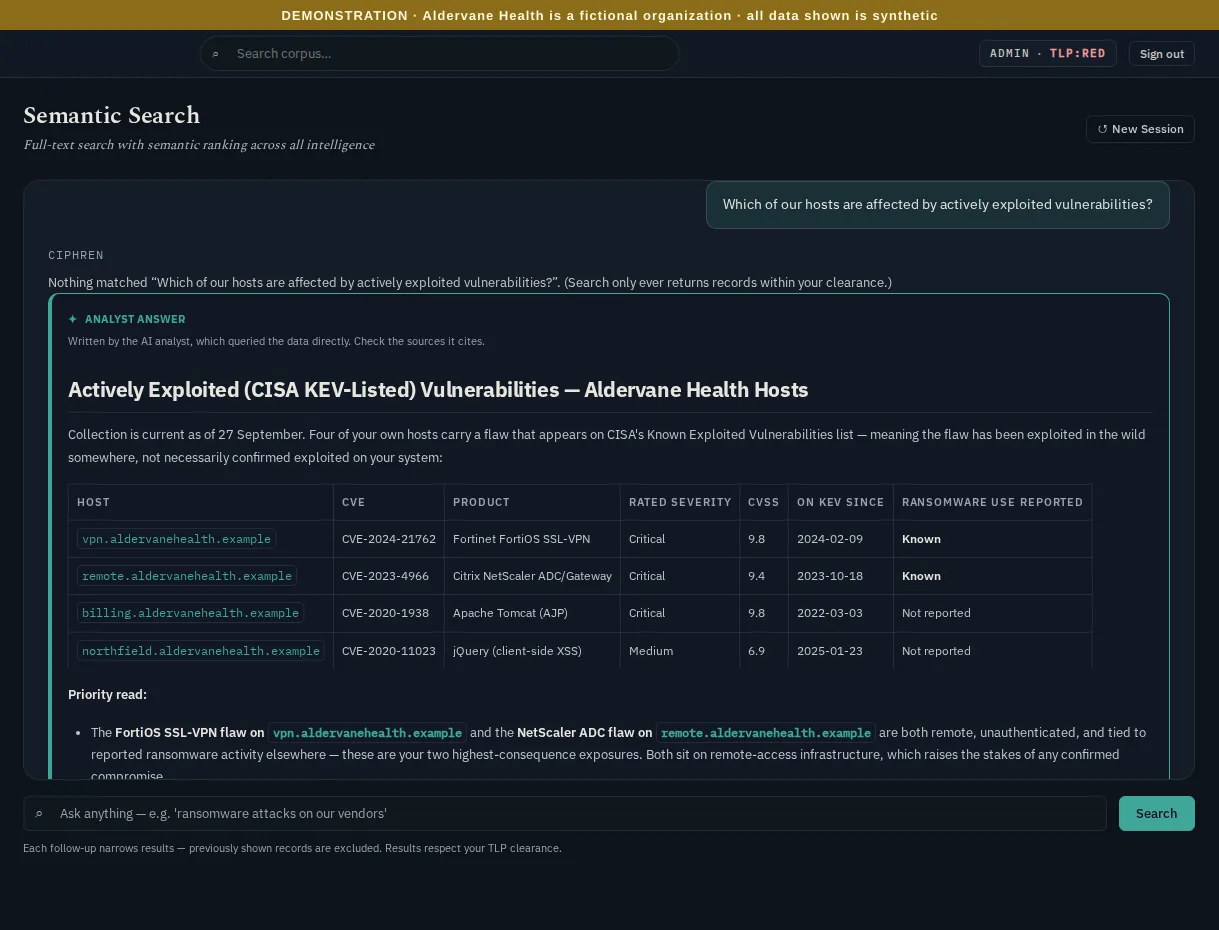
When your search is a question, ✦ Ask answers it. In this example, asked "Which of our hosts are affected by actively exploited vulnerabilities?", the search itself finds nothing: no record contains those words. So Ask queries the data directly, and says so ("written by the AI analyst, which queried the data directly"). It:
- says how current the data is: as of the last collection;
- lists the affected hosts, with product, version, CVE and CVSS score, when CISA added the flaw to its list, and whether ransomware use is known;
- starts with the four hosts on Aldervane's own domain;
- says plainly that a KEV listing means the flaw has been exploited somewhere, not necessarily against Aldervane.
Every host, version and CVE in the answer is named exactly, so each can be checked in Asset Findings (chapter 4).
Deep Reasoning
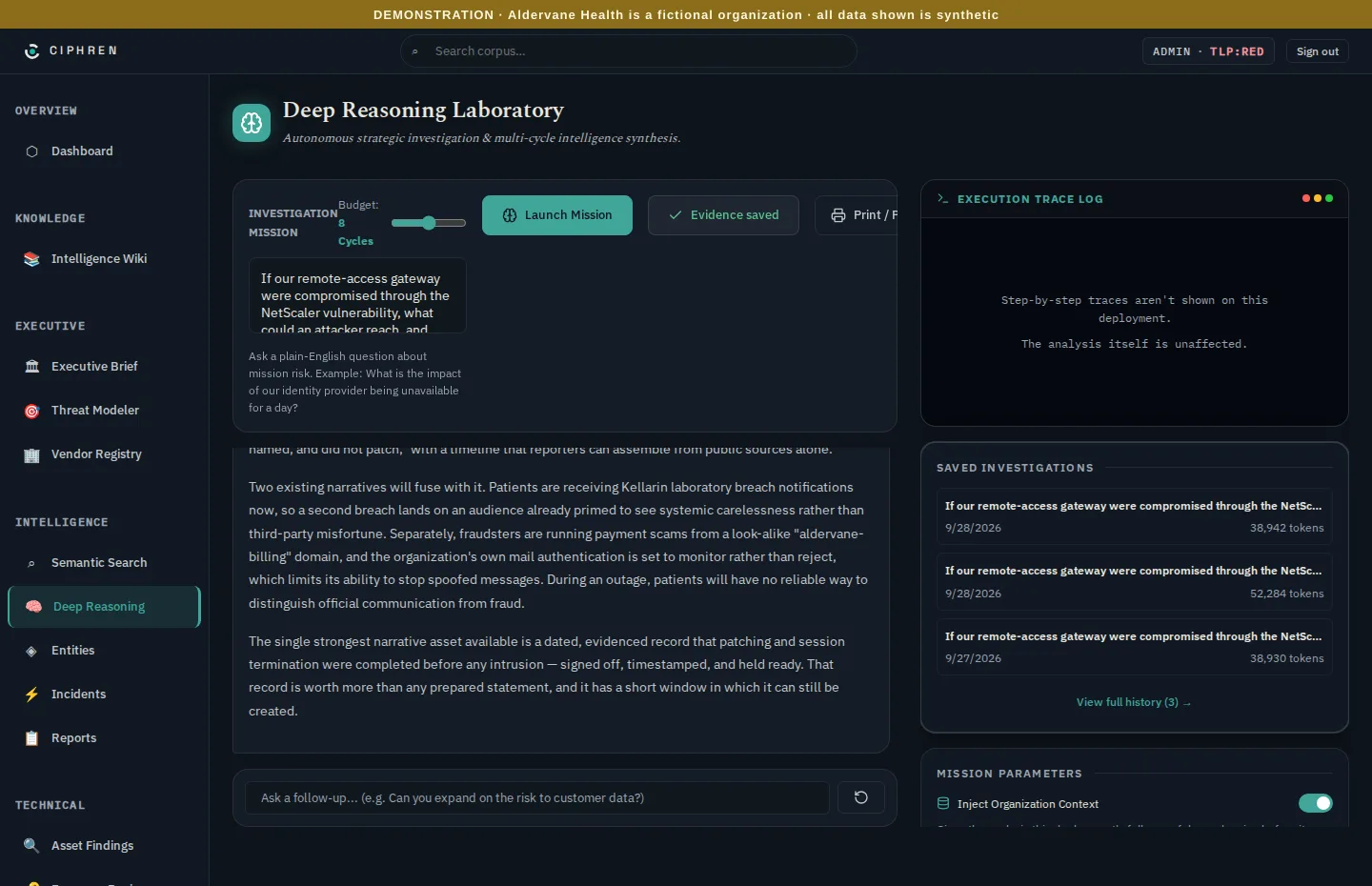
Deep Reasoning is for questions that need an investigation: it looks things up, reasons, then looks again, for several cycles. Write the question in plain English, such as "If our remote-access gateway were compromised through the NetScaler vulnerability, what could an attacker reach, and what should we do first?", and launch it.
- Budget: how many cycles of looking and thinking it may use. More cycles take longer and go deeper.
- Inject organization context: gives it your whole map of dependencies before it starts. It's slower, and more thorough.
- Follow-up: ask a further question in the same thread.
- Saved investigations: every run is saved ("Evidence saved"), so you can reopen it or print it for a meeting. Each shows how much work the model did, in tokens (units of text it read and wrote).
- Execution trace log: where a deployment allows it, the step-by-step record of what the model looked up. Deployments can turn it off; the analysis itself is the same either way.
In this example it connected the vulnerable gateway, a supplier breach already in the news and a look-alike billing domain. It concluded that the organization can still act first, but not for long: "The narrative advantage available to us is narrow and time-limited: acting on the 24 September guidance now, and being able to say so with dates, is the only version of this story in which we are the hospital that closed the door." The guidance it means is the health-sector advice to patch these gateways and reset their sessions.
Threat Modeler
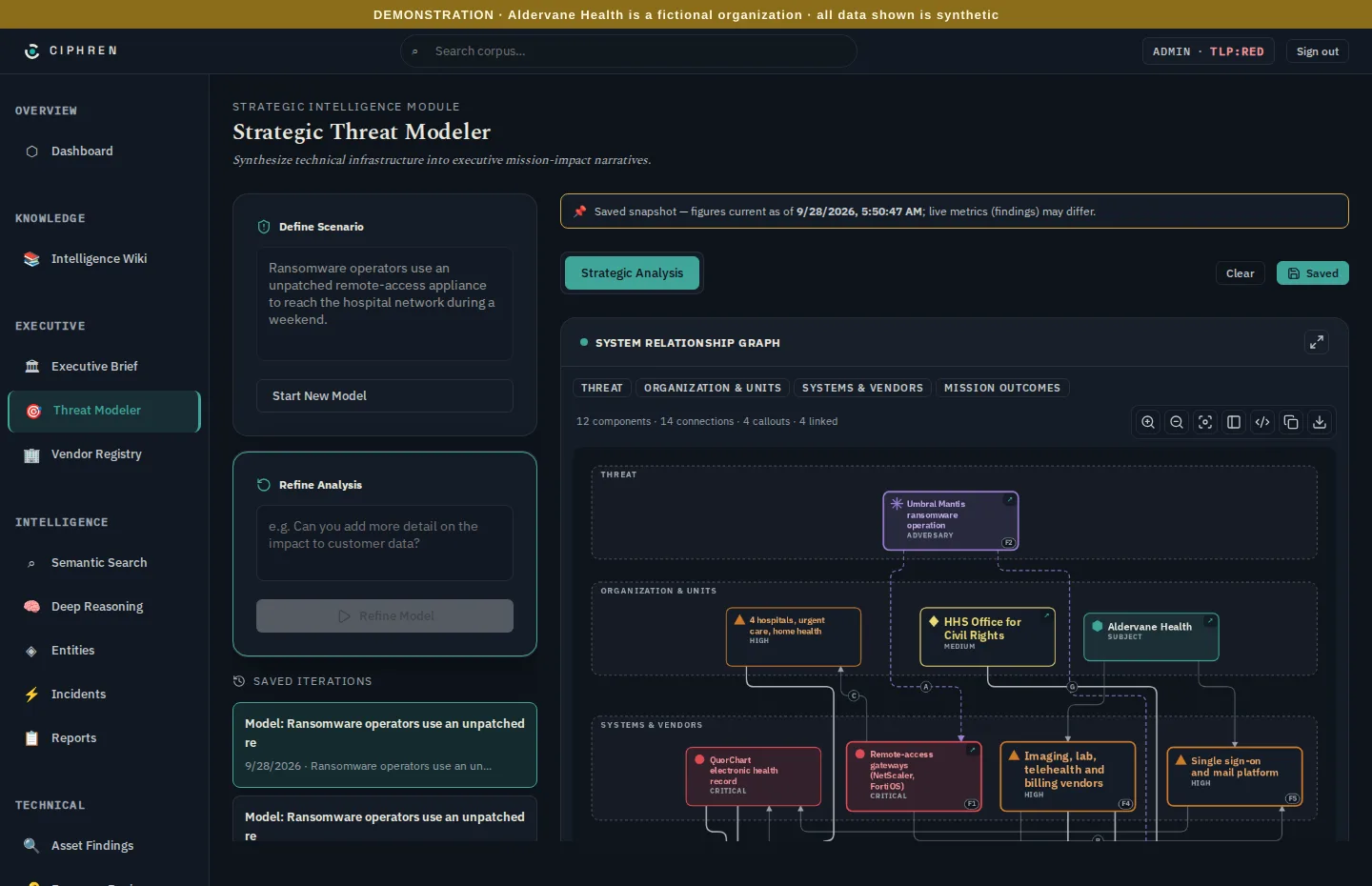
The Threat Modeler plays a scenario out against your estate: "Ransomware operators use an unpatched remote-access appliance to reach the hospital network during a weekend." It returns:
- a system relationship graph: the threat, the systems it could move through, and the outcomes it could cause, with the connections between them lettered. The graph's bands group them: the threat, the parts of your organization affected (labelled Organization & units), your systems and vendors, and the outcomes;
- callouts: the specific evidence behind each step, such as a finding or a story. Here, F1 is the remote-access gateway, publicly named as unpatched on 25 September;
- a table that takes each part in turn (what it does, the threat to it, and the impact on the mission), then the analysis behind it.
Refine it with a follow-up ("add more detail on the impact to patient data"). Every version is saved with the date of its figures, so a model shown to a board says what was true when it was made.
What to do with it
- Start with Search for anything you can name.
- Use Ask for a quick, checkable answer before a meeting.
- Use Deep Reasoning when the question is really "what does this mean for us?"
- Use the Threat Modeler for tabletop exercises, and to show leadership how an exposure could become an incident, step by step.