The product's own user guide. Every screen shows Aldervane Health, a fictional organization. All data is synthetic.
12. For administrators
The question it answers
Who can see what, how do they get in, and can we prove what they did?
An intelligence platform holds sensitive material: your weaknesses, and your suppliers'. Before a security team adopts one, it asks four questions: who gets an account, what each person may see, how sign-in is protected, and whether every action is recorded. This chapter answers them.
Signing in
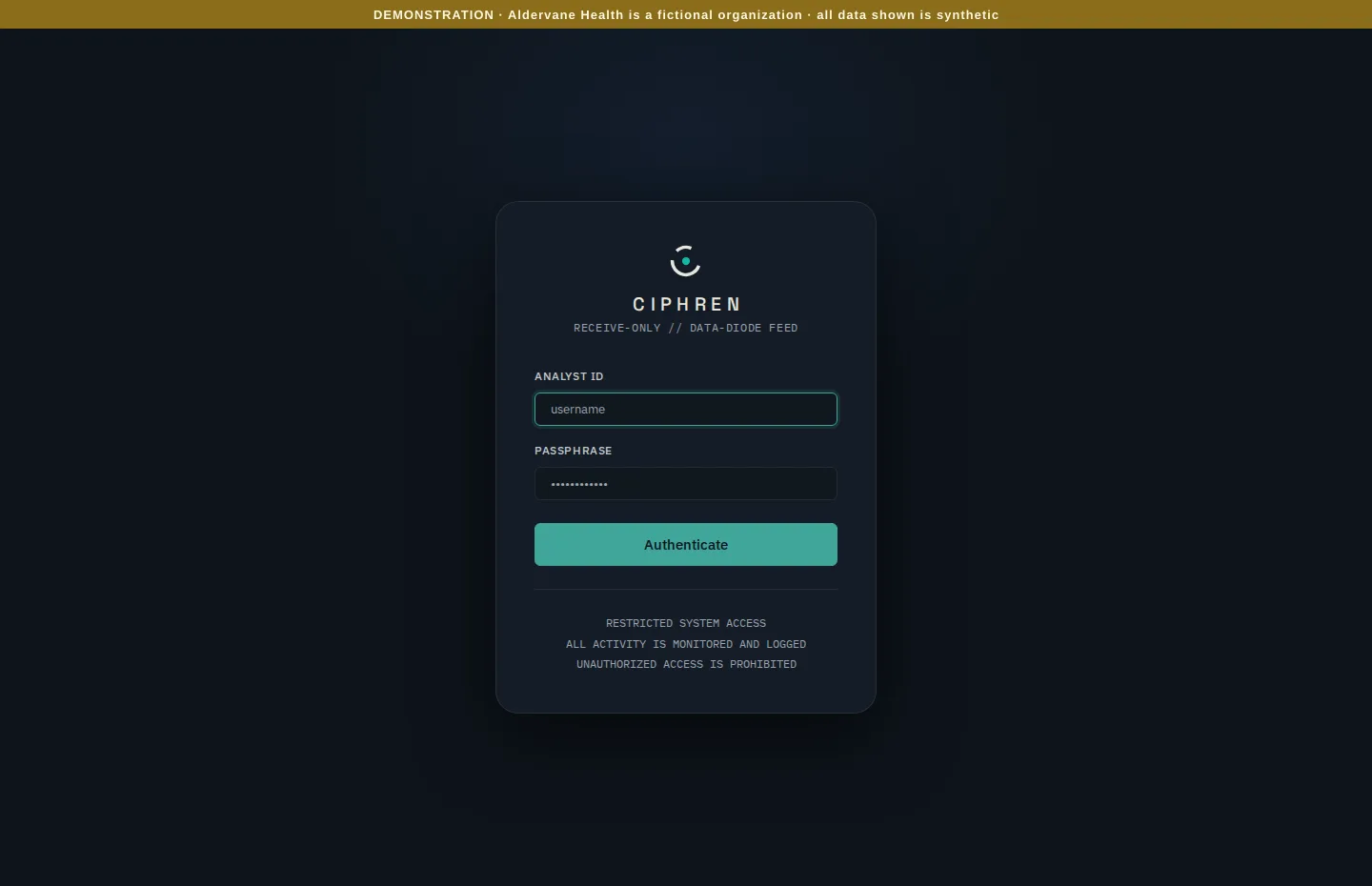
People sign in with a username (the page says Analyst ID) and password (Passphrase). Where your deployment enables it, they can also use your organization's single sign-on, for example Google Workspace. Multi-factor authentication (MFA) can be required on top of either (below).
Accounts and invitations
Where: navigation ▸ User Management (admins only).
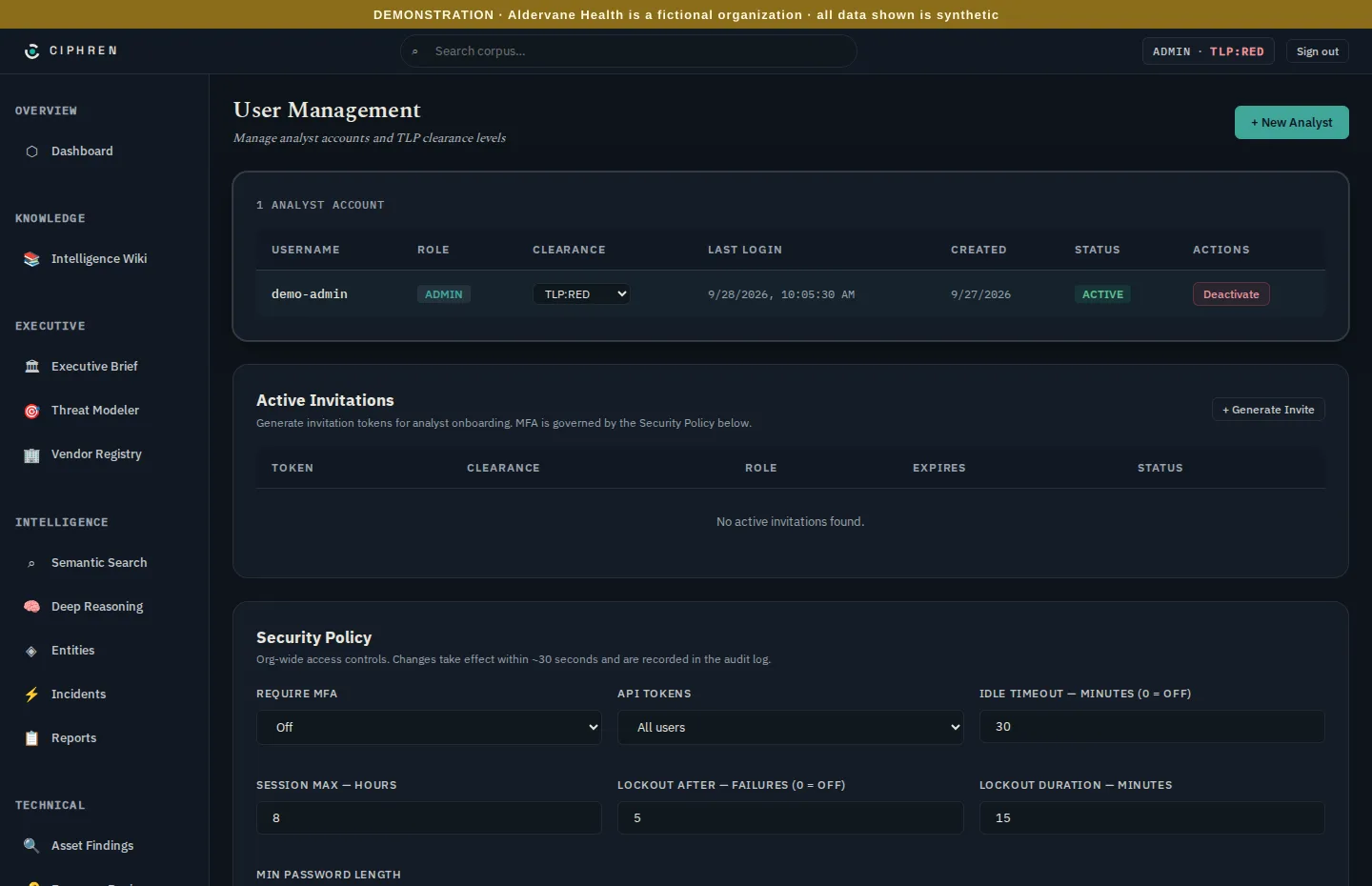
User Management lists every account: its role, its access level (the column says Clearance), when it last signed in, and whether it's active. An administrator can change an access level or deactivate an account at any time. Changes apply at the person's next request, without waiting for them to sign out.
There are two roles:
| Role | Can |
|---|---|
| Analyst | Use every page, within their access level |
| Admin | Everything an analyst can, plus manage accounts, invitations, security policy and the audit log |
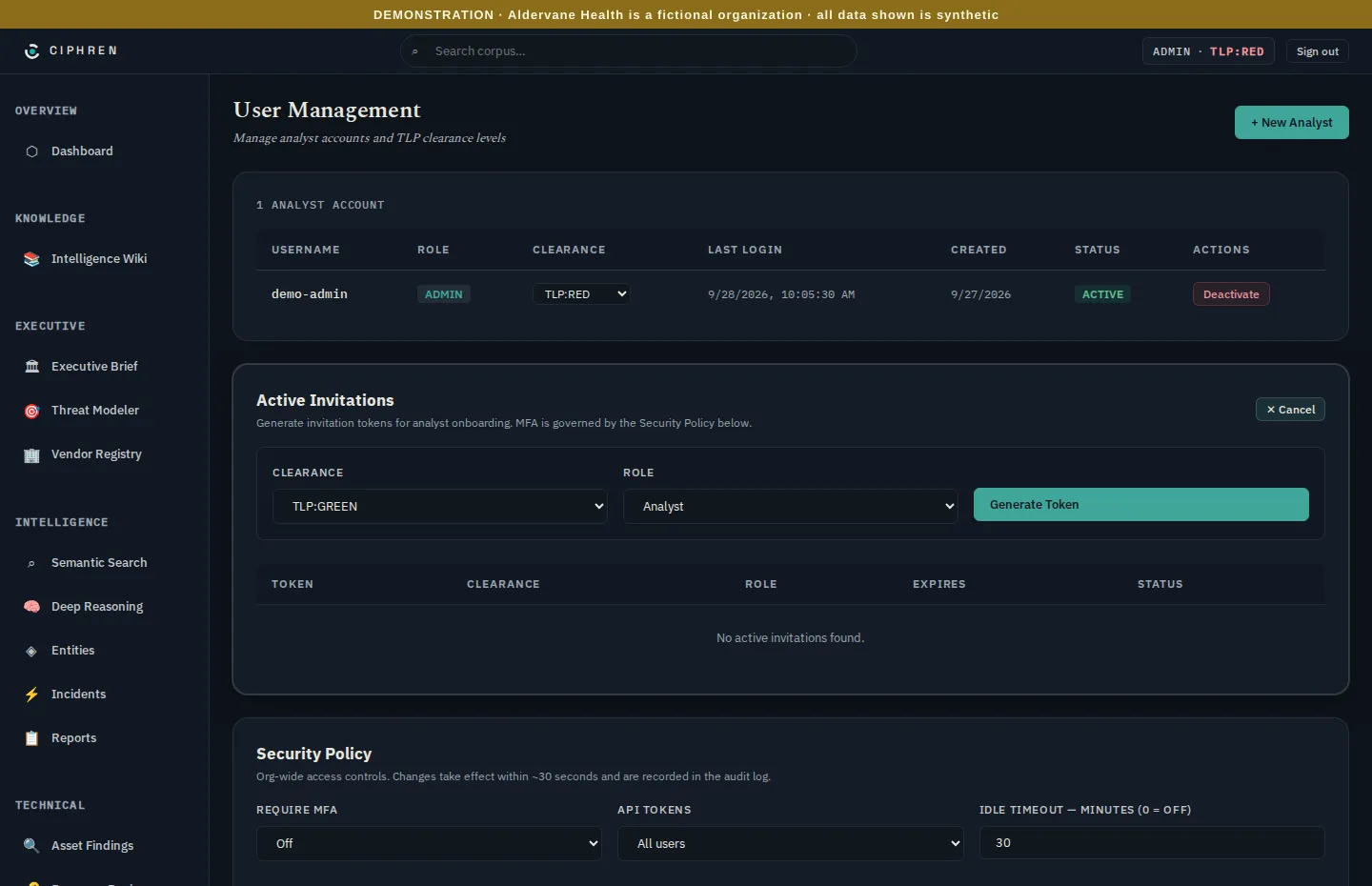
Adding people. There are two ways:
- Invitation (recommended): the administrator chooses the access level and role, and clicks Generate Token. That creates a single-use link, which expires after 7 days. The person sets their own password, so no administrator ever knows it.
- + New Analyst: the administrator creates the account directly, setting its username and first password.
With an invitation, the person opens the link and chooses a username and password (subject to your password policy). They join with exactly the level and role on the invitation. Each link works once. If two people try to use the same link, only the first succeeds.
Access levels (TLP)
Everything in Ciphren carries a TLP marking: the Traffic Light Protocol, a standard for how widely information may be shared.
| Marking | May be shared with |
|---|---|
| TLP:CLEAR | Anyone |
| TLP:GREEN | Your community, not publicly |
| TLP:AMBER | Your organization, on a need-to-know basis |
| TLP:RED | Named recipients only |
Each account has an access level (on screen, its clearance), one of the same four. A person sees only items marked at or below their level. An analyst at GREEN doesn't see an AMBER report anywhere: not in lists, search, Ask or the AI tools. The marking on each item is shown next to it, so people know how widely they may pass it on.
Why it matters. It lets you give a wider group, such as site IT leads or a procurement team, useful access without sharing everything.
MFA
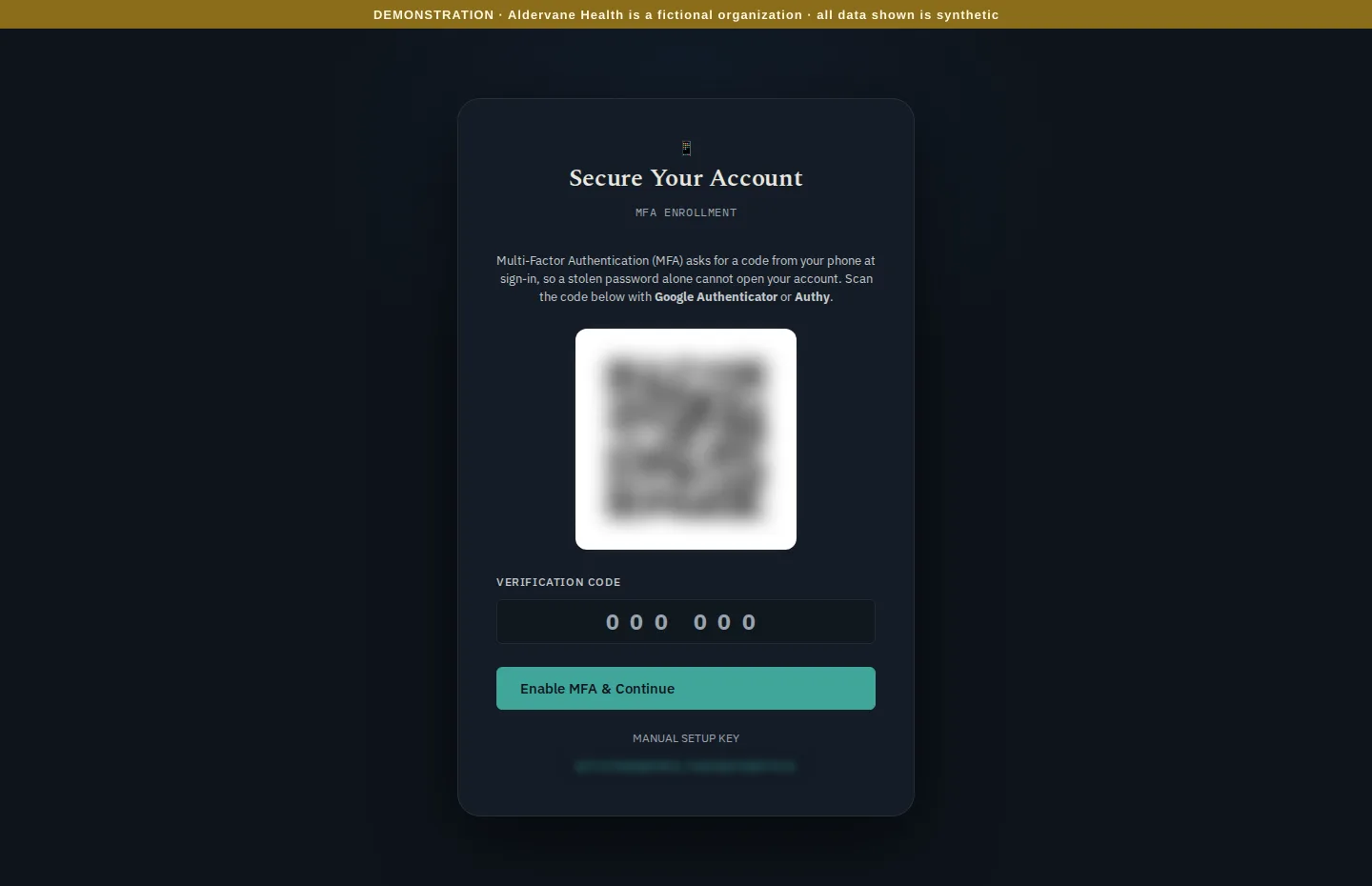
Multi-factor authentication adds a second step to sign-in: a six-digit code from an authenticator app such as Google Authenticator or Authy. Each person sets it up from Security Settings (navigation ▸ Security Settings) with Enable MFA. That opens the enrolment screen shown: scan the code, then enter the six digits to confirm. (The code is blurred here, as it should be in any screenshot. If your policy requires MFA, the screen says so and appears at sign-in; otherwise it explains what MFA protects against.)
Whether MFA is required is set in the security policy below. It can be off, required for admins, or required for all accounts. When it's required, a new account must set it up before it can do anything else.
Security policy
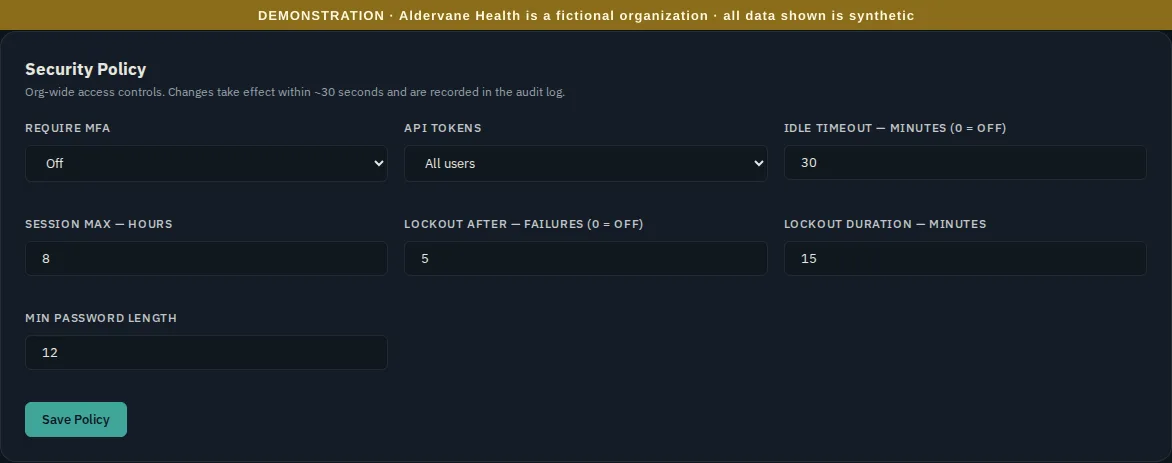
The security policy applies to the whole organization:
| Setting | What it controls |
|---|---|
| Require MFA | Off, admins only, or everyone |
| API tokens | Who may create tokens for programmatic access (scripts and other tools reading Ciphren's data): everyone, admins only, or nobody |
| Idle timeout | Minutes of inactivity before a session ends |
| Session max | The longest a session lasts, however active |
| Lockout after failures / lockout duration | How many wrong passwords lock an account, and for how long |
| Min password length | The shortest password allowed (default 12) |
Changes take effect within about 30 seconds and are themselves recorded in the audit log. Your deployment may pin some settings. For example, a hosted demonstration may require MFA for everyone, switch off API tokens and bulk export (downloading whole lists as files), and switch off the AI tools, showing saved examples instead. Pinned settings can't be relaxed from this page.
The audit log
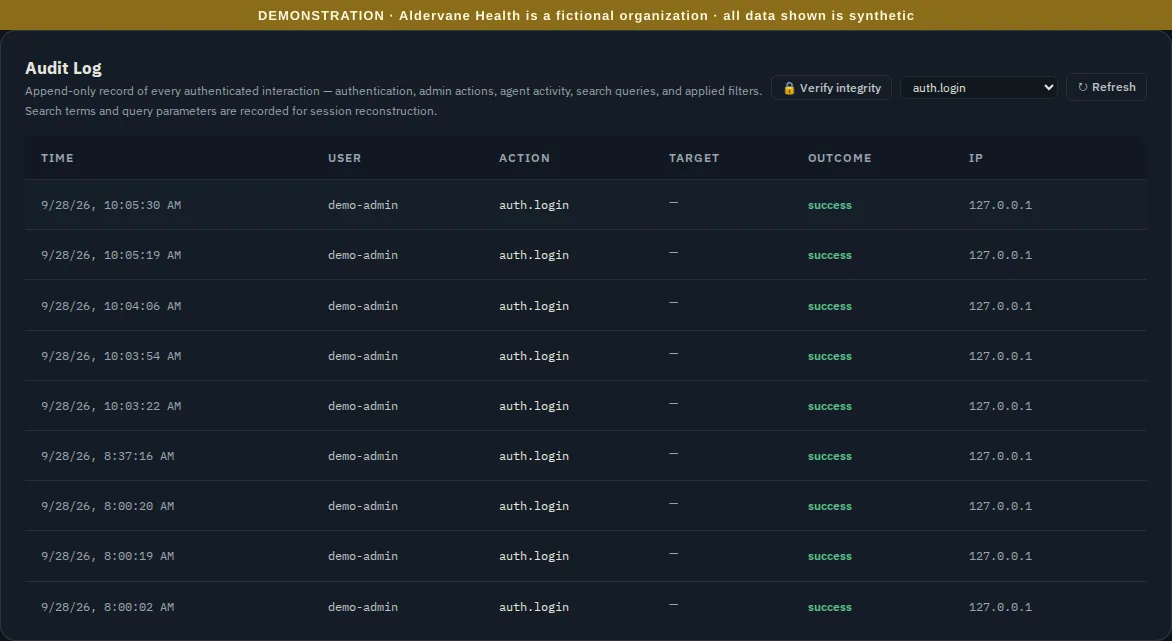
The audit log is an append-only record of every authenticated action: each sign-in, each administrative change, each page viewed, each search and filter, and each use of the AI tools. Each entry gives the time, the account, the action, its target, whether it succeeded, and the address it came from.
- Filter by action to answer specific questions, such as every sign-in (shown above), every sign-in failure, or every change to the security policy.
- Verify integrity checks that no entry has been altered or removed. Each entry is chained to the one before it, so a change anywhere breaks the chain, and the check says where.
Why it matters. When someone asks "who looked at this, and when?", whether it's your own team, an auditor or an investigator, the answer is here, and you can show it hasn't been edited.
Checklist for onboarding a security team
- Decide who needs admin. Usually two people, so there's always a second.
- Set the security policy: require MFA for all, and set a session length and lockout that match your standards.
- Decide each group's access level before sending invitations.
- Send invitations, one per person, never shared.
- Look at the audit log after the first week: sign-ins, failures, and anything unexpected.