The product's own user guide. Every screen shows Aldervane Health, a fictional organization. All data is synthetic.
4. Findings
Where: navigation ▸ Asset Findings, and Exposure Review below it.
The question it answers
What weaknesses can the outside world see on our systems and our suppliers', and which do we fix first?
A finding is one observation on one system. Most are weaknesses, such as an outdated web server or a certificate that has expired. Some are facts you should simply know, such as which software a site runs. Asset Findings lists them all, lets you narrow them down, and helps you turn them into work.
It's the most detailed page in Ciphren, so it offers three ways to look at the same findings. Pick the one that matches the job in front of you.
By component: what to fix, as units of work
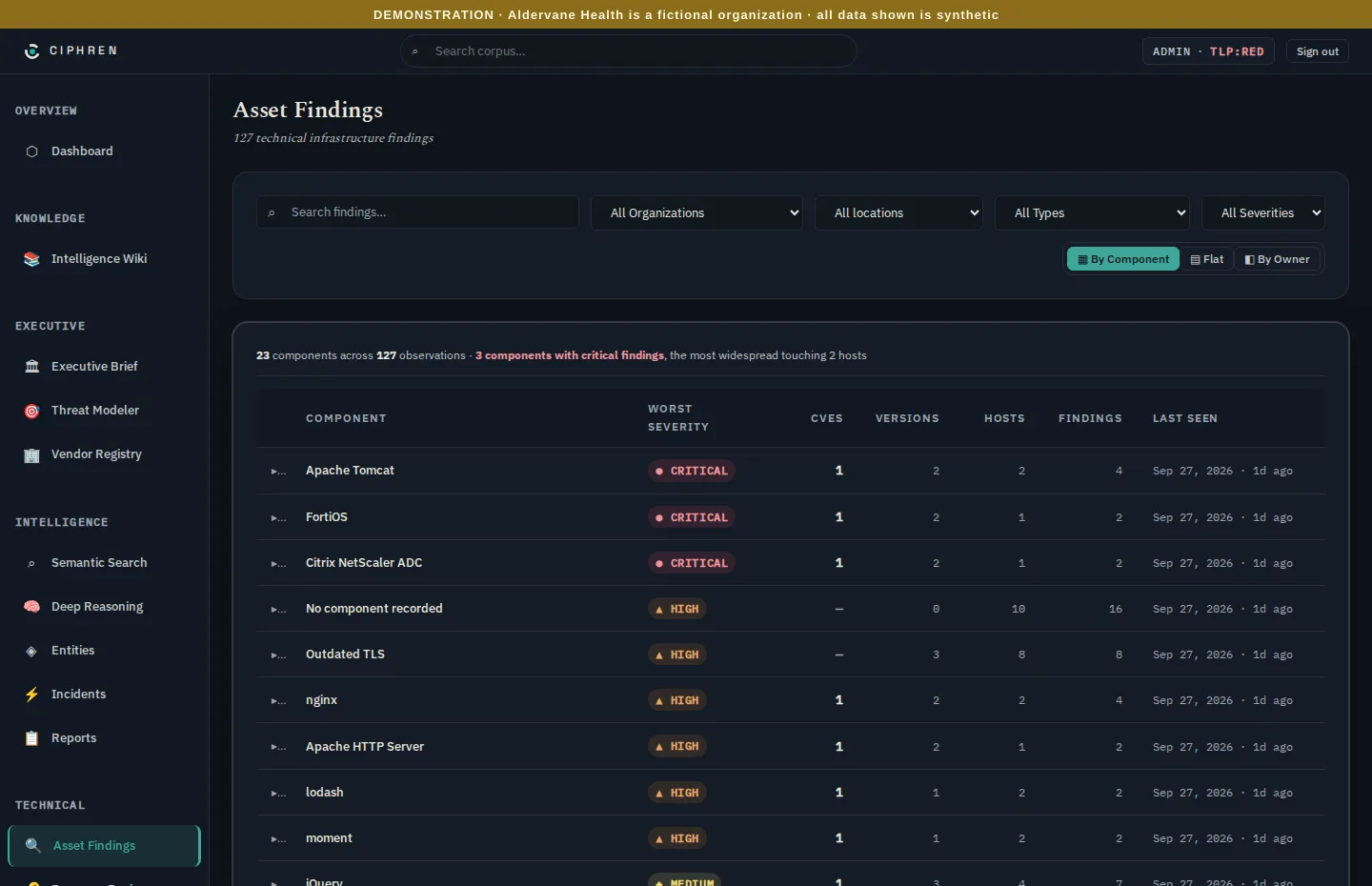
By component groups findings by the software they're about: FortiOS, Apache Tomcat, nginx, jQuery and so on. For each one it shows the worst severity, how many known vulnerabilities (CVEs) it carries, how many versions are in use, and how many hosts and findings it touches.
Why start here. Fixing is done per product, not per finding. Upgrading Tomcat everywhere closes every Tomcat finding at once. Sorting by worst severity puts the most urgent upgrades first. The summary line says it plainly: 3 components with critical findings, the most widespread touching 2 hosts.
Click a row to see its versions and the hosts running each one.
"No component recorded" collects findings that aren't about a piece of software, such as an expired certificate or unsigned DNS records. They're still weaknesses; they just don't have a product to upgrade. (Outdated encryption settings get their own row, Outdated TLS.)
Flat: every finding, one per row
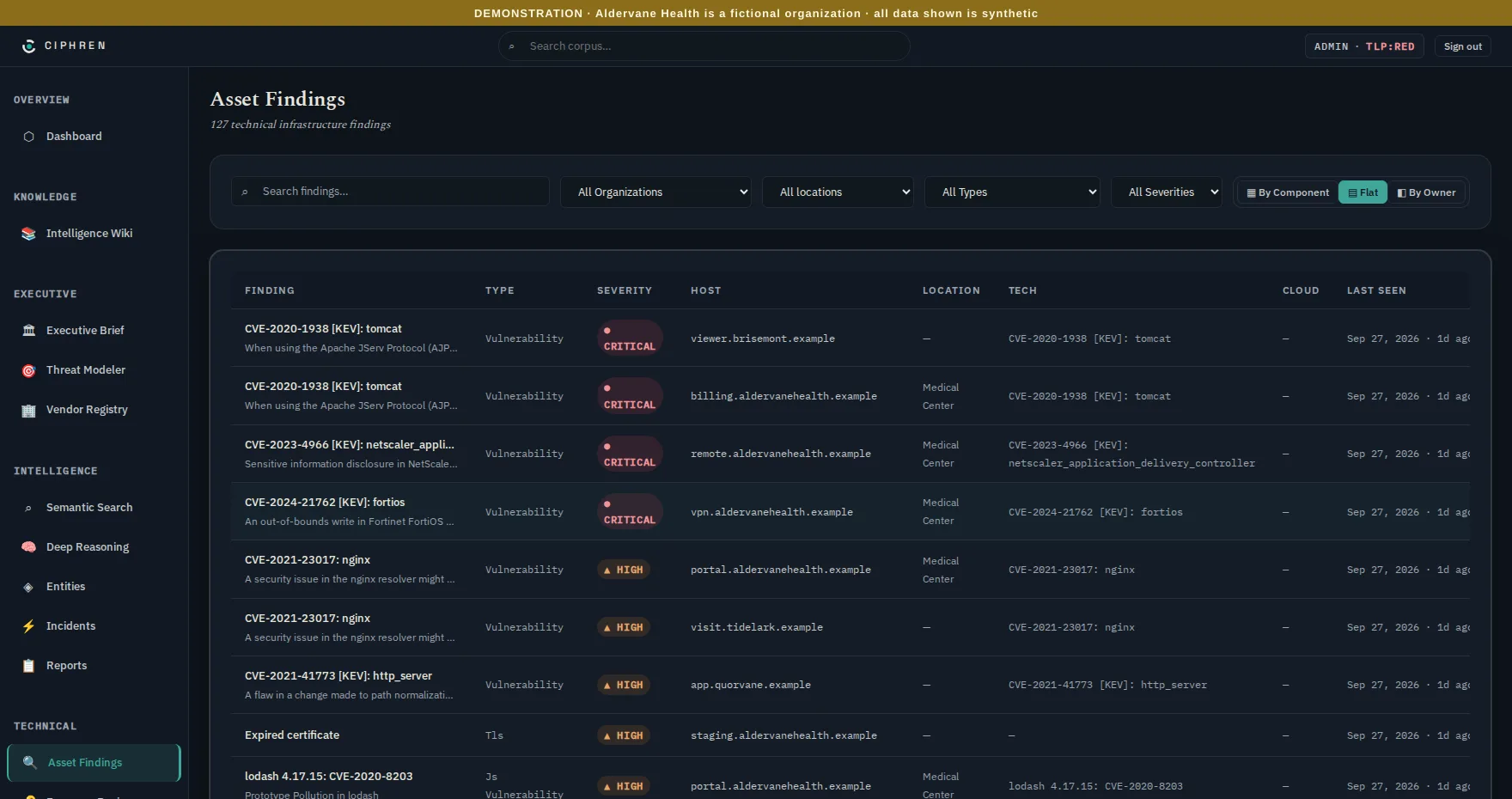
Flat lists every finding on its own: title, type, severity, host, location, the technology involved, and when it was last seen. Use it when you need the individual items, for example to hand a list to an engineer or to export it.
The filters narrow any view:
- Search: words in the title or detail.
- Organization: your own, one affiliate, or one supplier.
- Location: one hospital, campus or office (chapter 5), or Not in a location.
- Type: vulnerability, TLS, DNS, technology and so on.
- Severity: critical down to informational.
A filter that arrived with a link, such as a CVE from an incident (chapter 3), shows as a chip at the top. Click its ✕ to clear it.
Click any finding to open its details: the evidence, the dates, patch state, the product and version, and where it sits. Chapter 3 walks through one.
By owner: whose job is it?
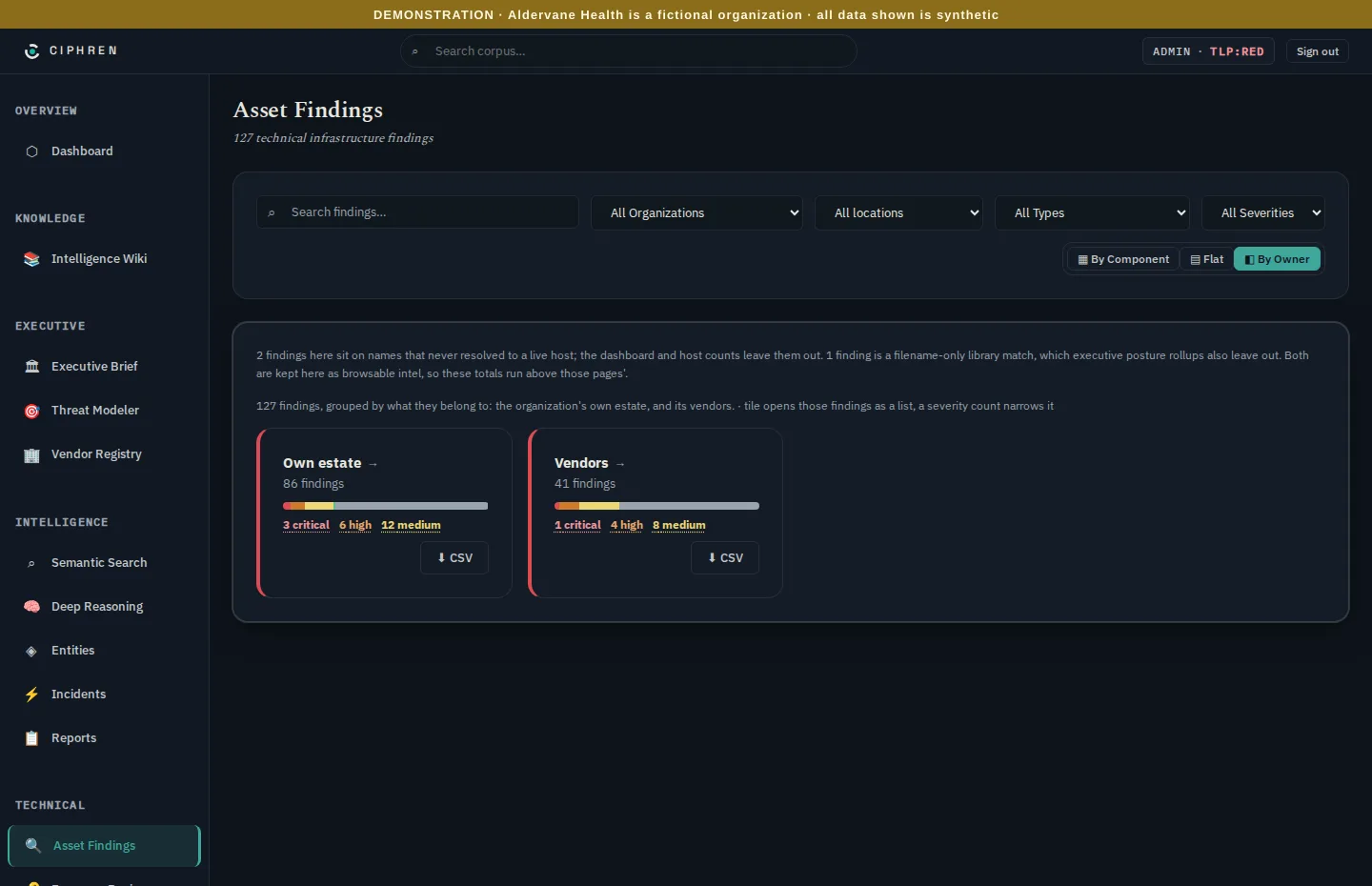
By owner splits findings into your own estate and your vendors':
- Own estate: systems you run. This includes affiliates you own or operate, such as a foundation or a subsidiary. Your organization's setup declares which affiliates count. These go to your own teams.
- Vendors: systems your suppliers run. You can't patch these yourself. They go to the supplier, and the finding is your evidence.
A note under the tiles explains any findings that are kept here but left out of the executive totals. Some are on names that never resolved to a live system. Others are code libraries matched only by a file name, which is weak evidence. They stay here so nothing is hidden, and they're kept out of the headline so it isn't inflated. The Why totals differ between pages box in chapter 2 lists every reason.
Exporting. Each owner tile has a CSV button that downloads its findings, for a spreadsheet or a ticketing system.
Exposure Review: things that look like secrets
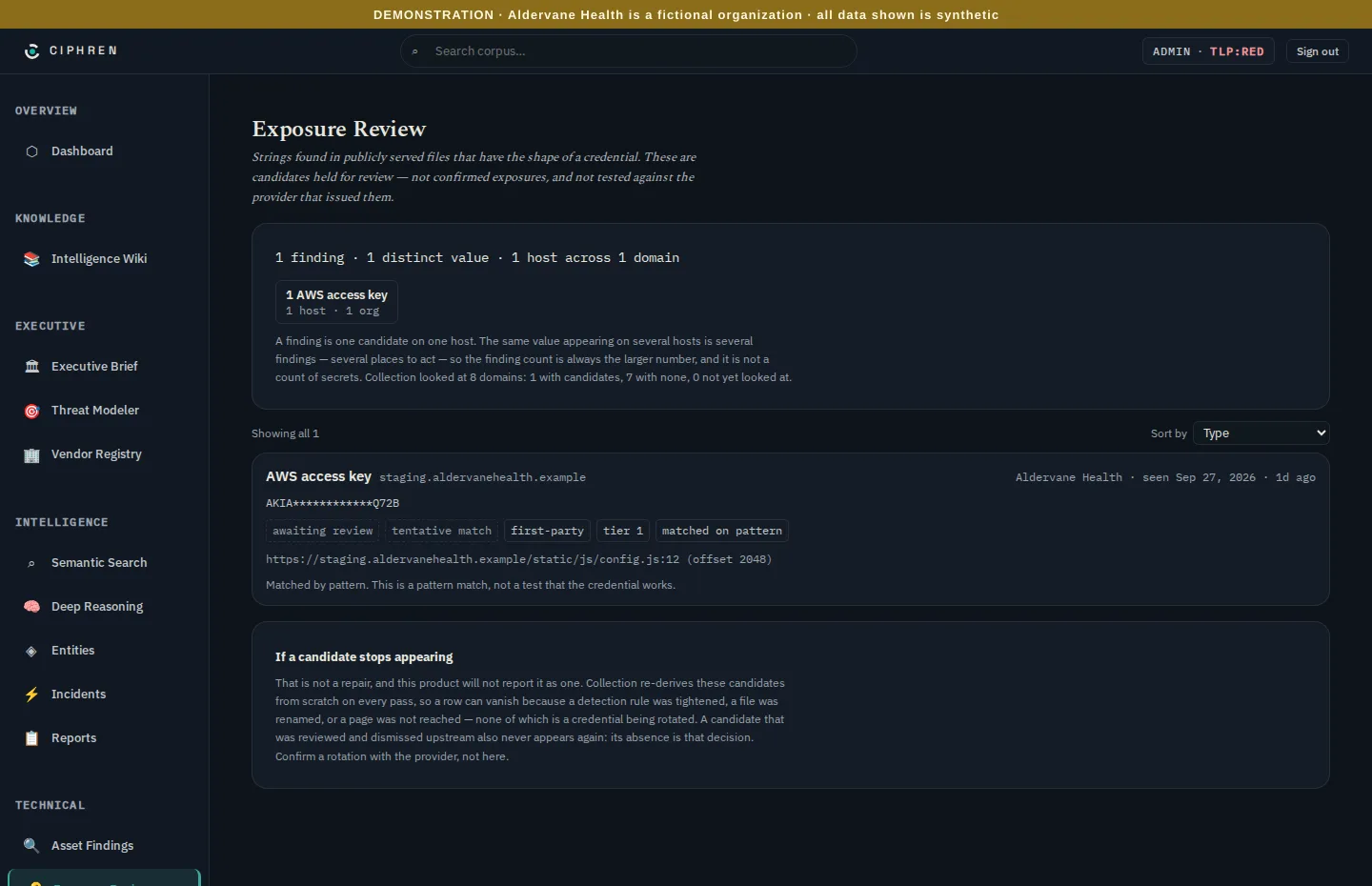
Exposure Review is a separate lane for one kind of finding: strings in publicly served files that have the shape of a credential, such as an access key left in a web page's code.
Read its wording carefully, because it's deliberately cautious:
- These are candidates held for review, not confirmed leaks. Ciphren matched a pattern. It never tries the key, because testing someone's credential isn't ours to do.
- The key is shown masked (
AKIA************Q72B), so the page itself doesn't spread it. - The labels say how it was found: tentative match and matched on pattern (a pattern, not a test), first-party (on your own site, not a supplier's) and awaiting review (nobody has judged it yet).
- If a candidate stops appearing, that isn't a fix. It may have moved, or a rule may have changed. Confirm any rotation with the provider that issued the key.
What to do with a candidate: ask the owner of the host whether it's a real key. If it is, revoke and rotate it first, then remove it from the page. The order matters, because the key has already been public.
What to do with it
- Weekly: in By component, work from the top: critical and known-exploited first.
- When assigning work: filter by location or organization, switch to Flat, and export or share the list.
- For suppliers: use By owner ▸ Vendors as evidence in your conversation with each supplier (chapter 6).
- Read "last seen": a finding stays until a collection stops seeing it. After a fix, expect it to close at the next collection, not instantly.
- Weigh KEV alongside severity: severity says how bad a flaw would be; KEV says it's being used in attacks now. A medium-severity flaw on the KEV list, such as the jQuery flaw at Northfield (chapter 5), is worth fixing before mediums that aren't.