The product's own user guide. Every screen shows Aldervane Health, a fictional organization. All data is synthetic.
5. Locations
The question it answers
Which of our sites is exposed, and who there needs to act?
A finding is only useful once it reaches someone who can fix it. In a multi-site organization, that someone usually works at a particular hospital, campus or office. Locations attach every finding to the part of your organization it belongs to, so work can be routed to the people on the ground.
Your organization chooses what these parts are called. Aldervane calls them locations. A university might say campuses and a company offices. The pages use your word.
The locations page
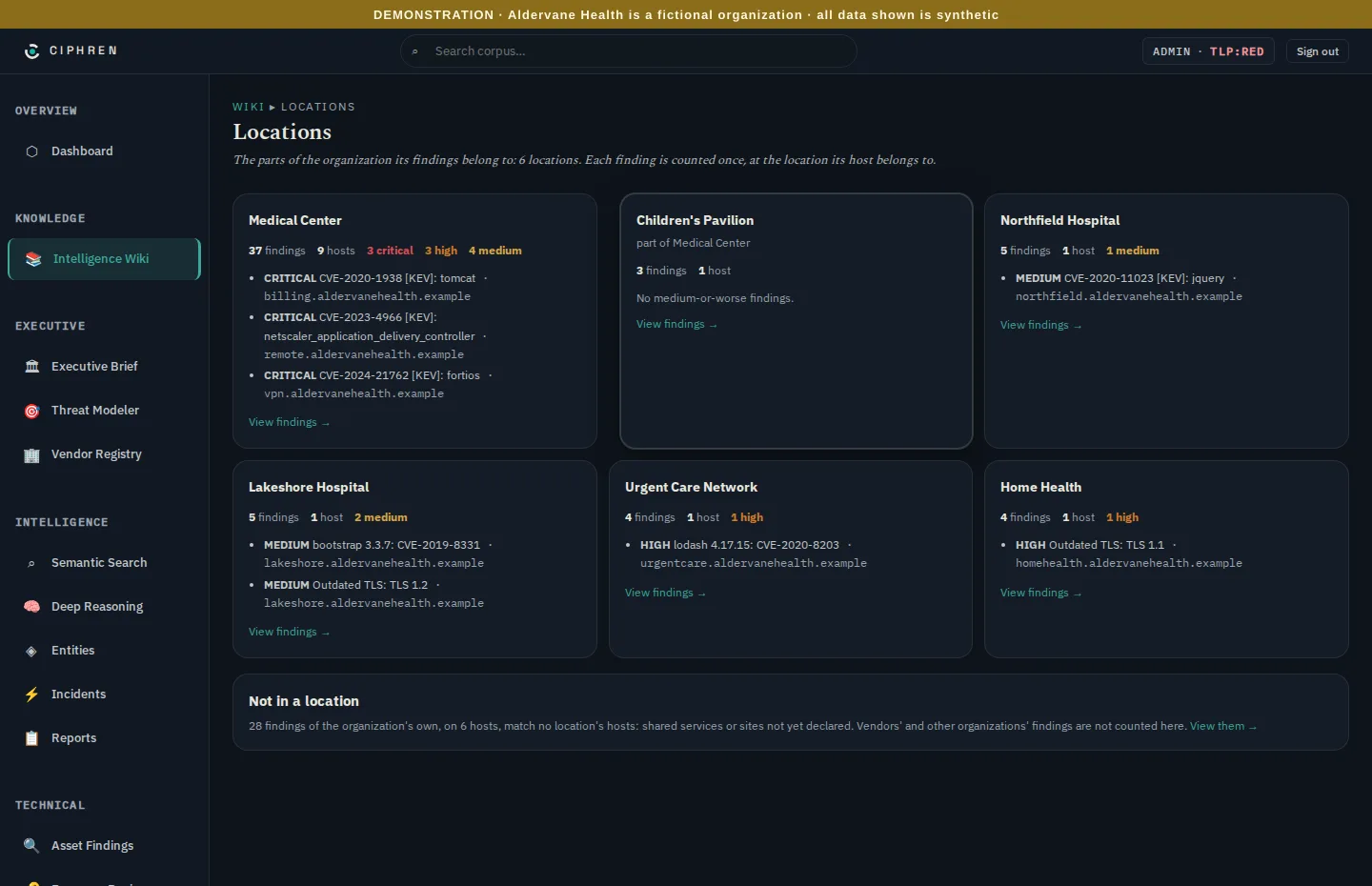
Where: navigation ▸ Intelligence Wiki ▸ Locations. Each card is one location:
- Its findings, hosts and severities, written out as words and numbers, never colour alone.
- Its worst issues: the top three medium-or-worse findings, so you can see what's at stake without opening anything.
- "Part of": a location inside another. Aldervane's Children's Pavilion is part of the Medical Center, so its card follows the Medical Center's and says so.
- View findings →: everything at that location, in the findings list.
How a finding gets a location. Your organization's setup tells Ciphren which systems belong where, usually by the
web address a site uses. For example, northfield.aldervanehealth.example belongs to Northfield Hospital. A finding
on that system, or on its IP address, is counted at Northfield, and only there.
Not in a location
The last card counts your own findings that no location claims. In Aldervane's case that's six hosts: the public website, the careers site, a staging server, a developer portal, and the foundation's website and donations site. That's normal: organization-wide services often belong to no single site.
It's shown so nothing falls through the cracks. If an important system turns up here, it probably needs an owner. Either give it a location in your setup, or make sure a central team owns it.
Vendors' findings are never counted here. They belong to the supplier, not to one of your sites (chapter 6).
A location's findings
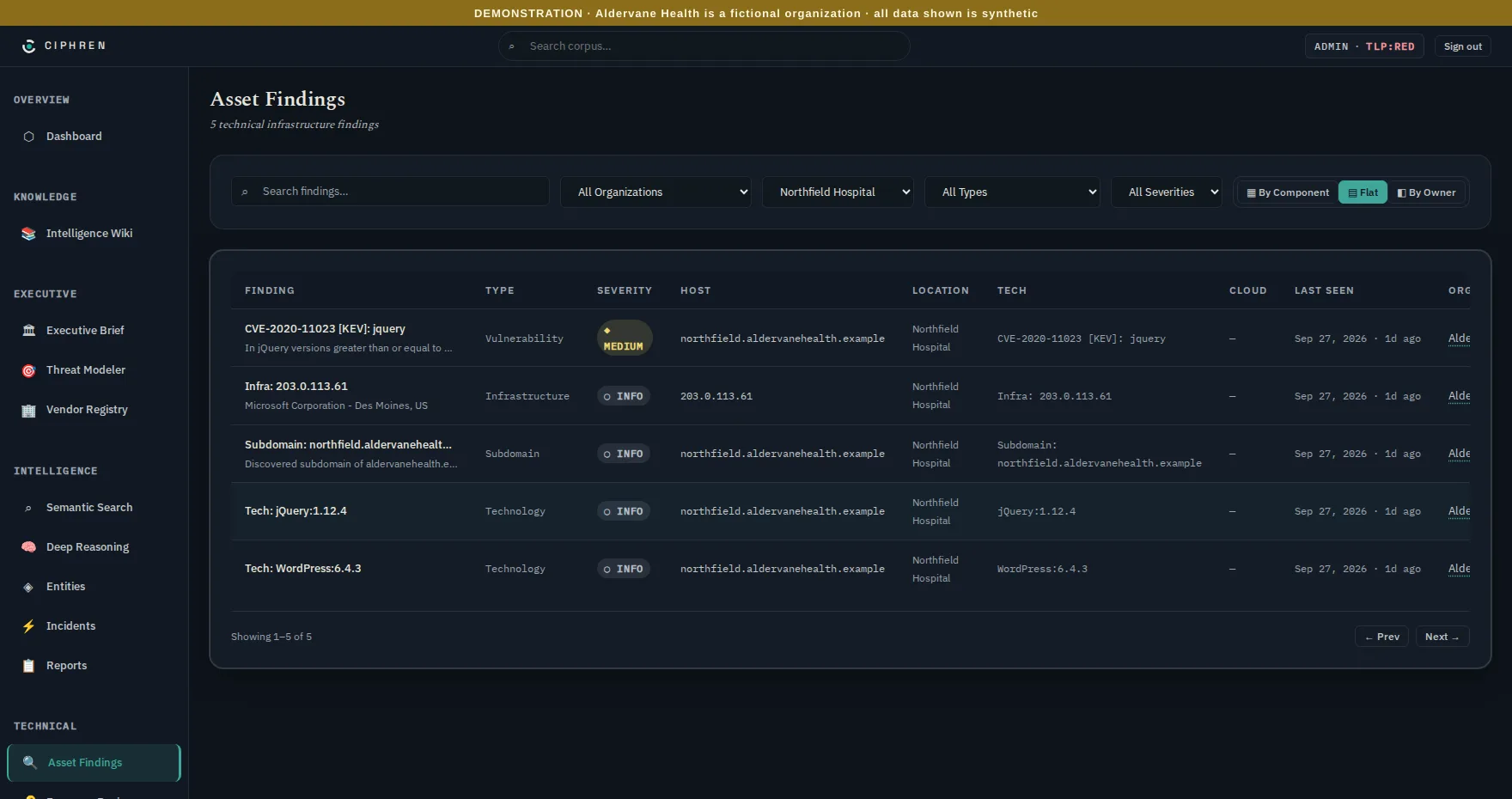
View findings → opens the findings list filtered to that location. The Location column and filter then work like any other (chapter 4). The same link appears in each finding's details, and next to each location in the Executive Brief's By location line.
What to do with it
- Route work by site: send each location's list to its IT lead.
- Compare sites: a location with many more findings than its peers often runs older systems or has less support. That's a resourcing conversation, not just a patching one.
- Clear the "not in a location" card: every system in it should have a named owner.